
Timeline templates in Timetoast: A faster way to start your next timeline
Timeline templates in Timetoast give you a ready-made starting point for product roadmaps, launches, client onboarding, biographies and school projects. Skip the blank page, pick a template, and start editing a working timeline with fields, sample events and views already in place.

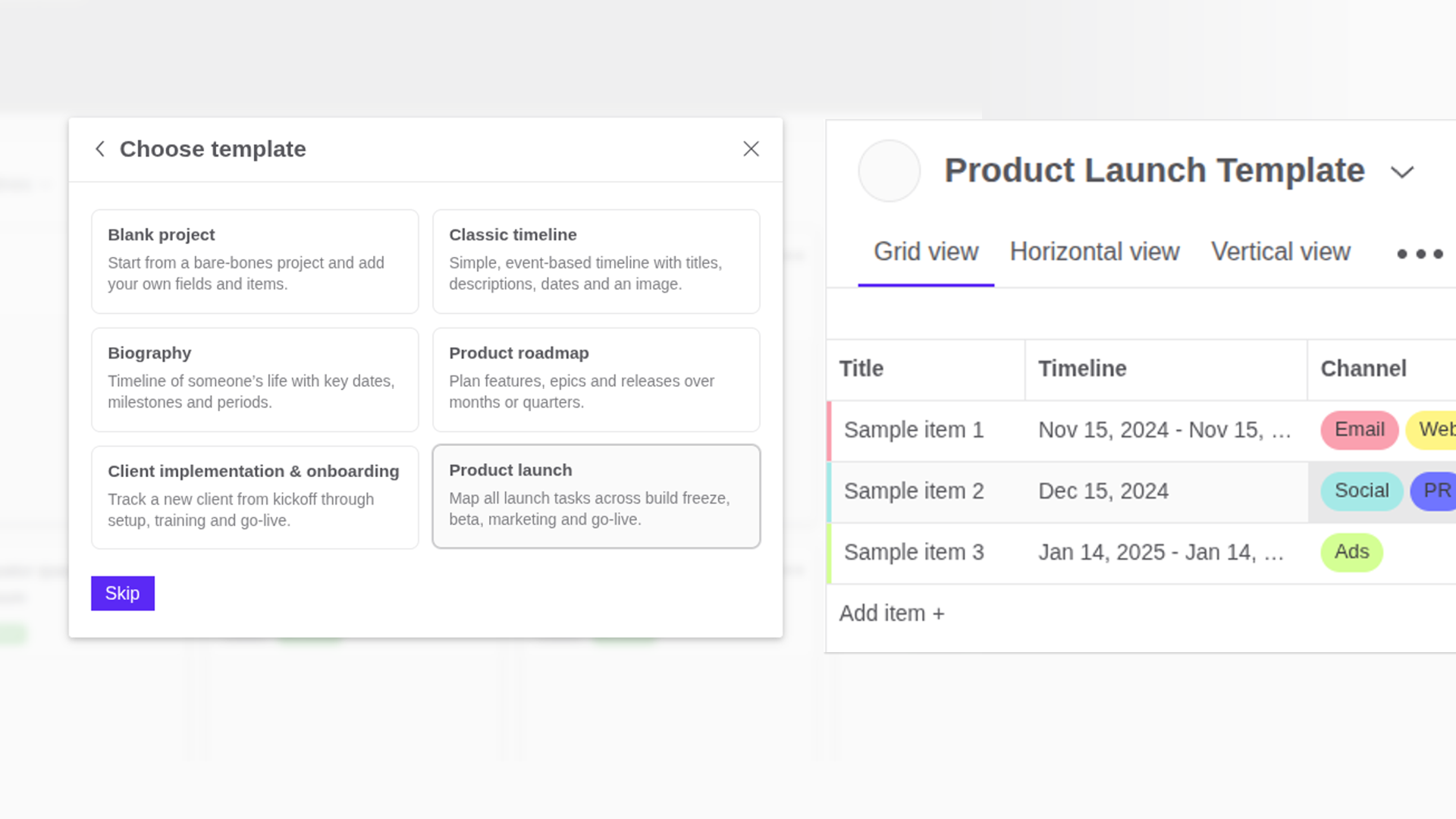
Starting from a scratch can slow you down. You have to decide which fields you need, before anyone can actually work with the timeline.
Timeline templates in Timetoast remove most of that setup work. They give you a ready-made starting point for common timeline projects. You can see the full set on the timeline templates page, including templates for product roadmaps, launches, client onboarding, biographies and school projects. The templates work with Timetoast’s new project-style timelines (previously known as Timetoast Unbound).
Timetoast lays out the timeline for you, so as you add new milestones and events they just slot into place automatically. Editing stays much faster, even as your project changes, because you're not constantly tidying up the timeline.
What timeline templates are in Timetoast
Timeline templates are pre-built projects that come with:
- A set of fields tuned to a specific use case
- Example items so you see a working timeline immediately
- A set of Views so you can change how to display your information
You’ll find templates when you create a new timeline in your dashboard. The new project-style timelines add custom fields, grid editing, colour-coding, filters and multiple views for each project.
If you still use timelines made with Classic Timetoast, they keep working as usual. For new work, templates give you a quicker way to start in the updated Timetoast workspace.
Templates for the timelines you create most often
Right now there are six templates to help you get going faster. Each one is built so you can rename fields, or add new ones, without losing the starting structure.
Blank Project template
The Blank Project template is a minimal starting point: just a title and a date field, ready for you to shape into whatever you need. It’s ideal if you already know how you like to set up projects and simply want a clean slate.
Classic Timeline template
The Classic Timeline template keeps things close to the original Timetoast style. It focuses on a clear chronological view with title, description, date, photo and a simple category field, which suits straightforward education timelines and simple story timelines.
Product Roadmap template
The Product Roadmap timeline template is built for planning and communicating product work over time. It includes fields for initiative name, description, timeline, status, owner and category, so you can track progress and share a clear roadmap with stakeholders. It fits naturally with Timetoast’s roadmap timelines.
Product Launch template
The Product Launch timeline template helps teams organize work across build freeze, beta, marketing, go-live and post-launch. It comes with fields for phase, owner, status and category, which makes it easier to keep launch tasks and key dates visible in both grid and timeline views.
Client Implementation & Onboarding template
The Client Implementation & Onboarding timeline template supports customer-facing teams as they move a new client from kickoff to go-live. Fields cover phases like discovery, configuration, data migration, training and UAT, alongside owner, status and category, so you can see how the rollout is progressing at any time. It pairs well with Timetoast’s project management timelines.
Biography template
The Biography timeline template is designed for education projects and biographical work. It includes fields for title, description, photo, role and category, so students and researchers can record life stages and key events with context, not just dates. It works nicely with both education and biography timelines and also has a photo field.
Templates as a starting point, not a box
Every template is meant to be adjusted to your needs, this is where the flexible field-based timeline structure really helps. Once you’ve created a project from a template, you can:
- Add or rename fields to match your team or subject
- Assign colors to highlight status, owner or phase
- Switch between grid, horizontal and vertical timeline views
The template gives you structure and example items, but the fields and views stay flexible so they can follow your process rather than forcing you into a fixed model.
Why templates help teams and classrooms move faster
Templates give you a head start, especially when several people need to use the same project.
A few ways they help:
Less setup, more progress
You don’t need to think about and design your project structure every time. You start with sensible defaults and adjust only what you need. Having a couple of sample events means you can get to editing timeline events right away.
Consistent structure across work
Using the same template for each roadmap, launch or onboarding project means your timelines share the same phases, statuses and owners. That makes reviews and reporting easier because every project looks and behaves in a familiar way.
Easier to explain to others
Because templates come with a couple of sample items, it’s simpler to show someone how you expect a timeline to be used. They see real entries from day one instead of a completely empty project.
For education, templates also give students a clear starting structure, so they can focus on research and writing rather than wrestling with setup.
How to start a new timeline from a template in Timetoast
You can use templates on any plan, including the free plan.
- Sign in to Timetoast, or create a free account if you’re new.
- On your dashboard, click Add project +.
- Pick the template you want from the list of timeline templates.
- Give your timeline a name and click Add.
- Review the fields and sample events, then edit them or add new ones so they fit your work.
What's next for templates
This first set of templates covers common timelines that we already see people making with the Timetoast timeline maker. Things like product roadmaps, product launches, client onboarding and biographies. We’ll keep adding more templates and publishing guides that walk through specific templates.
If there’s a template you’d like to see next, you can reach out through the contact page or via the in-app feedback links.